Practical JPG to WebP workflow

JPG to WebP conversion with a repeatable workflow

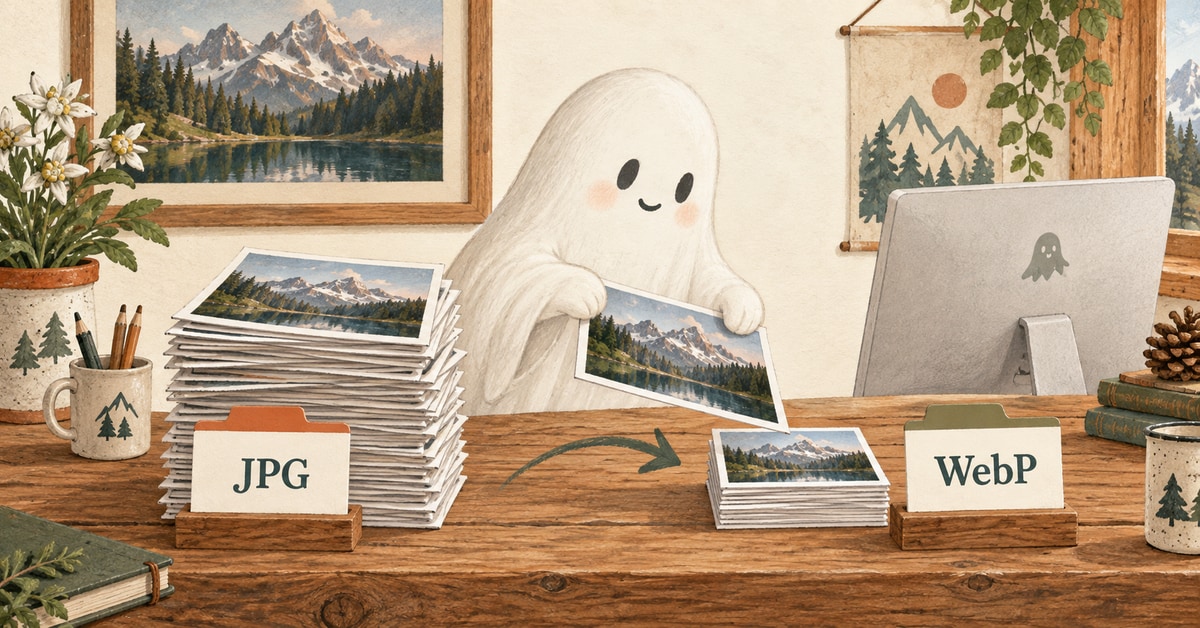
JPG to WebP conversion is valuable when it becomes a repeatable publishing step, not an extra tool to manage. This guide explains how to decide what to convert, set quality, and review results before publishing.

Brief summary

Convert JPG to WebP for routine web images

Use WebP for standard website images when you want smaller files, broad support, and a repeatable workflow. Don’t treat conversion as the final step alone. Resize, convert, check the image in the page layout, and keep the original JPG for future exports.

Resize before publishing A smaller file format won’t fix an image that remains several times wider than the layout requires.
Quality depends on context The correct setting is the lowest that still looks clean on the final page, not just in an isolated preview.
Batch processing requires clear rules Folders remain manageable when naming, output locations, and review steps are consistent.
Keep the source JPG WebP is usually the published format. The original JPG remains useful if sizes or crops change later.

Best fit

Use WebP for weekly image tasks

The strongest JPG to WebP use case isn’t a one-off export but repeated tasks: article photos, card images, thumbnails, product visuals, screenshots, and landing page images that should load quickly without slowing publishing.

Article content

Inline article photos

Good WebP candidates are sized to the reading column and lack tiny text requiring extra scrutiny.

Listing UI

Cards and thumbnails

Often the simplest gain, as many small images appear together on hub, archive, and category pages.

Large visual

Standard hero images

Useful when the image is important but doesn’t warrant a separate AVIF review process.

Product context

Screenshots and UI captures

Can be effective, but text, fine lines, and flat colour areas require careful visual inspection after conversion.

Decision table

Decide based on image role before adjusting quality settings

A quality WebP export begins with understanding the image’s role on the page. The same JPG might require different output settings depending on whether it’s a hero image, card thumbnail, screenshot, or social preview.

JPG source Use WebP when Watch out for Review routine
Article photo The image appears within a content page and does not require transparency or lossless detail. Over-compression can cause skin, gradients, and low-light areas to appear dirty. Check at the actual reading width and on mobile devices.
Card or thumbnail The same layout loads many images, so each file should remain small. Cropping and aspect ratio errors are more noticeable than minor quality differences. Scan a full listing page, not just one isolated card.
Hero image The page requires a lighter large visual, and WebP quality remains clean. The LCP image can still be too large if dimensions are excessive. Compare file size, displayed size, and sharpness above the fold.
Screenshot The screenshot is sufficiently photographic or simple to withstand lossy compression. Small interface text, icons, and single-pixel lines can blur easily. Zoom to the on-page display size and read every visible label.
Open Graph image You need a social preview file and have verified how the platform crops it. Social crawlers and previews may have different requirements than the page itself. Prepare it as a separate asset rather than reusing a random article export.

Quality settings

Begin with a quality range, then assess the page

There is no universal WebP quality setting. A clean article photo, UI screenshot, and small thumbnail each fail differently. Use the values below as starting points, then check the final image where visitors will see it.

Image role Starting quality Size rule What to inspect
Article photos 76-82 Export near the displayed width, with a larger variant only if the layout requires it. Faces, gradients, shadows, and low-contrast backgrounds.
Cards and thumbnails 72-80 Prioritise consistent cropping and predictable dimensions throughout the listing. Edges, subject cropping, and visual balance across multiple cards.
Hero images 80-86 Use exact responsive widths rather than one large universal file. Sharpness above the fold, visible banding, and actual LCP file size.
Screenshots 82-90 Keep a PNG fallback when sharp text is more important than file size. Small text, menus, borders, and single-colour panels.
Social previews 80-86 Create previews at their intended size rather than cropping from the page image. Text safe zone, logo clarity, and whether the preview survives platform cropping.

If a photo requires heavy compression and you can conduct a detailed visual review, also compare with AVIF. For daily publishing, WebP is generally the simpler default.

Publishing workflow

A consistent JPG to WebP workflow for website updates

  1. 1

    Gather the source JPGs

    Place originals for each article, landing page, or update into a stable source folder. Avoid converting from scattered downloads.

  2. 2

    Group images by role

    Separate hero images, article images, cards, screenshots, and social preview assets before selecting settings.

  3. 3

    Resize to fit layout requirements

    Ensure output dimensions match the website, as format conversion alone won’t fix oversized images.

  4. 4

    Convert into a clean output folder

    Keep web-ready WebP files separate from originals to avoid accidentally publishing old JPGs.

  5. 5

    Review on a real page

    Place some converted images into the actual layout and check mobile width, card grids, and the largest visible image.

  6. 6

    Publish with metadata

    Set width, height, alt text where useful, and separate social or schema images when required by the page.

Common mistakes

Avoid errors that make WebP appear poorer than it is

Poor WebP workflows typically falter during conversion, not because WebP is unsuitable. Common issues include oversized exports, lost originals, poor filenames, and unchecked quality settings in context.

Converting camera originals directly A 5000px source saved as WebP can still be far too large if the page only shows it at 900px.
Using a single quality setting for all images Screenshots, portraits, thumbnails, and social previews each have distinct failure points.
Replacing the sole source file Retain the original JPG to rebuild WebP files if crops, widths, or design needs change.
Skipping the page preview A file may appear fine in a viewer but still look soft, cropped, or overly large within the actual layout.
Forgetting filenames Clear filenames aid future maintenance and reduce the risk of publishing incorrect files.
Ignoring fallbacks If your system requires fallbacks, test them rather than assuming they function correctly.

Privacy and control

Keep sensitive JPG files out of uncontrolled upload processes

Online converters may be suitable for harmless public images but are a poor default for client photos, internal screenshots, unreleased campaigns, or files revealing context via names or metadata. For recurring tasks, a local folder-based workflow is easier to audit.

Public marketing image Using an online converter is acceptable when the image is already public and unrelated to confidential work.
Client or campaign image Keep files local unless the project explicitly permits third-party uploads.
Internal screenshot Treat dashboards, unreleased UI, analytics screens, and admin panels as sensitive by default.
Recurring batch workflow Prefer local, scripted, or platform-controlled conversion for repeatability and easier auditing.

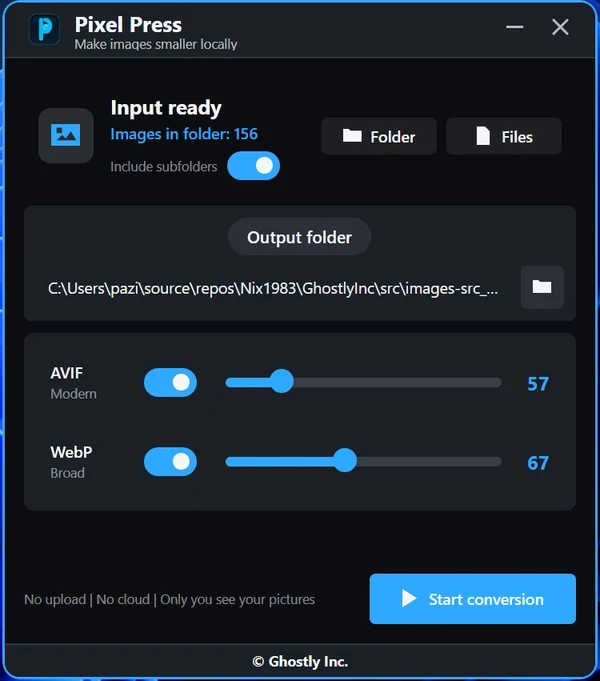
For repeated local batches, a desktop workflow like PixelPress works well as source folders, output folders, and review remain local to your current machine.

Final checklist

Perform this check before publishing WebP files

The WebP file is actively used Check the page source or network panel as needed to ensure the old JPG isn’t still loading.
Dimensions match the layout The delivered image should be close to the largest size visitors actually view.
Quality was verified in context Review faces, text, gradients, and shadows within the real page, not just in a file viewer.
Originals are preserved Store source JPGs in a predictable folder to allow regeneration of crops and sizes later.
Metadata assets are intentional Open Graph and JSON-LD images should be prepared deliberately, not copied from a random previous export.
The process can be repeated Future updates should be able to follow the same folder structure, naming conventions, conversion, and review process.

Frequently Asked Questions

Frequently asked questions

Practical answers to JPG to WebP workflow queries