Practical JPG to WebP workflow

Convert JPG to WebP with a workflow you can repeat

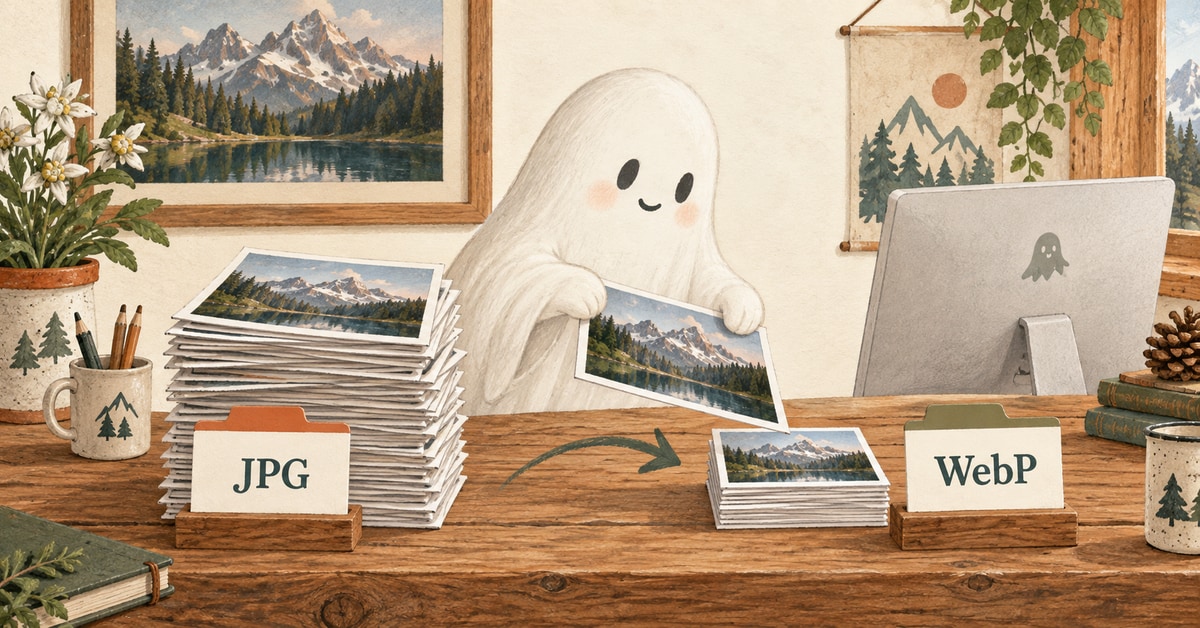
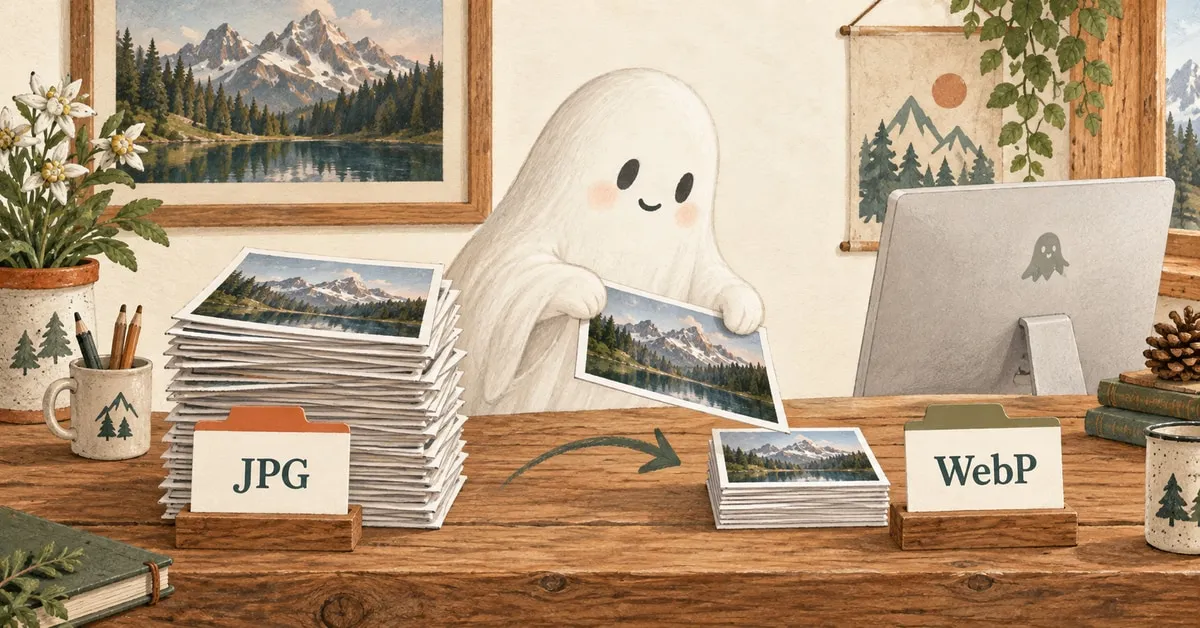
JPG to WebP conversion is useful when it becomes a repeatable publishing step, not when it becomes another tool tab to babysit. This guide shows how to decide what to convert, how to set quality, and how to check the result before it ships.

Quick answer

Convert JPG to WebP when the image is routine web content

Use WebP for ordinary website images where you want smaller files, broad practical support, and a workflow your team can repeat. Do not treat conversion as the final step by itself. Resize, convert, inspect the image in the page layout, and keep the original JPG available for future exports.

Resize before shipping A smaller format cannot rescue a file that is still several times wider than the layout needs.
Quality is contextual The right setting is the lowest one that still looks clean in the final page, not in an isolated preview.
Batch work needs rules Folders stay manageable when names, output locations, and review steps are predictable.
Keep the source JPG WebP is usually the published output. The original JPG remains useful when sizes or crops change later.

Best fit

Use WebP for the image jobs that happen every week

The strongest JPG to WebP use case is not a single dramatic export. It is the repeated work: article photos, card images, thumbnails, product visuals, screenshots, and landing page images that should load quickly without making publishing slower.

Article content

Inline article photos

Good WebP candidates when they are sized to the reading column and do not contain tiny text that needs extra review.

Listing UI

Cards and thumbnails

Often the easiest win because many small images appear together on hub, archive, and category pages.

Large visual

Standard hero images

Useful when the image is important but does not justify a separate AVIF review path.

Product context

Screenshots and UI captures

Can work well, but text, fine lines, and flat color areas need a closer visual check after conversion.

Decision table

Decide by image role before you touch quality settings

A good WebP export starts with the job the image has on the page. The same JPG can need different output rules depending on whether it is a hero image, a card thumbnail, a screenshot, or a social preview.

JPG source Use WebP when Watch out for Review habit
Article photo The image appears inside a content page and does not need transparency or lossless detail. Over-compression can make skin, gradients, and low-light areas look dirty. Check it at the actual reading width and at mobile width.
Card or thumbnail The same layout loads many images and each file should stay small. Cropping and aspect ratio mistakes are more obvious than tiny quality differences. Scan a full listing page, not only one isolated card.
Hero image The page needs a lighter large visual and WebP quality still looks clean. The LCP image can still be too heavy if dimensions are oversized. Compare file size, rendered size, and above-the-fold sharpness.
Screenshot The screenshot is photographic enough or simple enough to survive lossy compression. Small interface text, icons, and one-pixel lines can blur quickly. Zoom to the on-page display size and read every visible label.
open graph image You need a social preview file and have checked how the platform crop behaves. Social crawlers and previews may use different requirements than the page itself. Prepare it as its own asset instead of reusing a random article export.

Quality settings

Start with a quality range, then judge the page

There is no universal WebP quality number. A clean article photo, a UI screenshot, and a small thumbnail fail in different ways. Use the values below as starting points, then inspect the final image where visitors will actually see it.

Image role Starting quality Size rule What to inspect
Article photos 76-82 Export close to the rendered width, with a higher-size variant only when the layout needs it. Faces, gradients, shadows, and low-contrast backgrounds.
Cards and thumbnails 72-80 Prioritize consistent crops and predictable dimensions across the listing. Edges, subject crop, and whether multiple cards still feel visually even.
Hero images 80-86 Use exact responsive widths instead of one huge universal file. Above-the-fold sharpness, visible banding, and real LCP weight.
Screenshots 82-90 Keep a PNG fallback candidate when crisp text matters more than file size. Small text, menus, borders, and single-color panels.
Social previews 80-86 Build the preview at its intended dimensions instead of cropping from the page image. Text safe area, logo clarity, and whether the preview survives platform cropping.

If a photo needs unusually strong compression and you can afford a careful visual review, compare the result with AVIF as well. For the daily publishing path, WebP is usually the easier default to operate.

Publishing workflow

A repeatable JPG to WebP workflow for website updates

  1. 1

    Collect the source JPGs

    Put the originals for one article, landing page, or update into a stable source folder. Do not convert from scattered downloads.

  2. 2

    Group by image role

    Separate hero images, article images, cards, screenshots, and social preview assets before choosing settings.

  3. 3

    Resize to layout needs

    Make sure the output dimensions match the website, because format conversion alone does not fix oversized images.

  4. 4

    Convert to a clean output folder

    Keep web-ready WebP files separate from originals so old JPG files are not published by accident.

  5. 5

    Review a real page

    Place a few converted images into the actual layout and check mobile width, card grids, and the largest visible image.

  6. 6

    Publish with metadata

    Set width, height, alt text where useful, and separate social or schema images when the page needs them.

Common mistakes

Avoid the mistakes that make WebP look worse than it is

Bad WebP workflows usually fail around the conversion step, not because WebP itself is the wrong format. The most common problems are oversized exports, forgotten originals, weak filenames, and quality settings that nobody checks in context.

Converting camera originals directly A 5000px source exported to WebP can still be far too large if the page only displays it at 900px.
Using one quality setting for everything Screenshots, portraits, thumbnails, and social previews have different failure points.
Replacing the only source file Keep the JPG original so you can rebuild WebP output when crops, widths, or design requirements change.
Skipping the page preview A file can look fine in a viewer and still look soft, cropped, or too heavy in the actual layout.
Forgetting filenames Good filenames help future maintenance and reduce the chance of publishing the wrong file.
Ignoring fallbacks If your stack still needs fallbacks, test the fallback path instead of assuming it works.

Privacy and control

Keep sensitive JPG files out of random upload flows

Online converters can be fine for harmless public images. They are a poor default for client photos, internal screenshots, unreleased campaigns, or files whose names and metadata reveal context. For recurring work, a local folder-based workflow is easier to audit.

Public marketing image An online converter can be acceptable when the image is already public and not tied to private work.
Client or campaign image Keep it local unless the project explicitly allows third-party uploads.
Internal screenshot Treat dashboards, unreleased UI, analytics screens, and admin panels as sensitive by default.
Recurring batch workflow Prefer local, scripted, or platform-controlled conversion so the process is repeatable and easier to audit.

For repeated local batches, a desktop workflow such as PixelPress can fit well because source folders, output folders, and review stay close to the machine you are already using.

Final checklist

Run this check before you publish WebP files

The WebP file is actually used Inspect the page source or network panel when needed so the old JPG is not still loading.
Dimensions match the layout The delivered image should be close to the largest size visitors actually see.
Quality was checked in context Review faces, text, gradients, and shadows inside the real page, not only in a file viewer.
Originals are preserved Keep source JPGs in a predictable folder so later crops and sizes can be regenerated.
Metadata assets are intentional Open Graph and JSON-LD images should be prepared deliberately, not copied from the last random export.
The process can be repeated A future update should be able to follow the same folder, naming, conversion, and review routine.

FAQ

Frequently asked questions

Answers to practical JPG to WebP workflow questions